
Important Update – Arch Retail License Expiry Functionality

As with most software providers, we’ve now implemented a built-in license expiry function that will limit access to the Arch Retail system after expiry of the licensed period.
Why this functionality was introduced
This update ensures alignment with international software industry practices and helps maintain the integrity of our products, services and support models. As our users depend on Arch Retail for the management of their retail operations, it’s essential that license terms are up to date to ensure access to ongoing support, software upgrades and system reliability.
What this means for you
- You’ll receive advance notice when your license is approaching expiry (visible on the bottom left of the Arch Retail startup screen).
- If your license expires, you will not be able to log in to Arch Retail until the license(s) is renewed.
- If you're operating in Safe Mode before the expiry date, limited functionality will continue until the system is reactivated. Please note that Safe Mode restricts access to features like cash-up, stock accuracy and back-office tools.
- Renewing your license is quick and easy, simply click on License Details from the startup/login screen and follow the guided process by contacting our Support Team.
How to stay on track
To avoid any disruptions:
- Ensure payments are up to date.
- Maintain regular internet connectivity to allow the license to renew.
- Reach out to our Support or Accounts Receivable teams should you need assistance or foresee payment delays.
Support: support@archretail.com
Accounts Receivable: accountsreceivable@archretail.com
We’re confident this enhancement will help us serve you better by ensuring smooth, secure and uninterrupted access to Arch Retail. Thank you for your continued support and partnership.
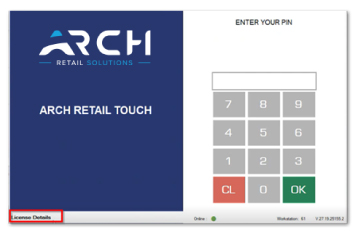
An active license
When you run Arch Retail, notice the new License Details area on the bottom left of the startup/login screen.
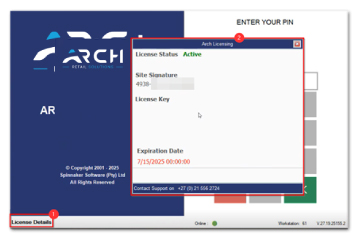
- Click License Details.
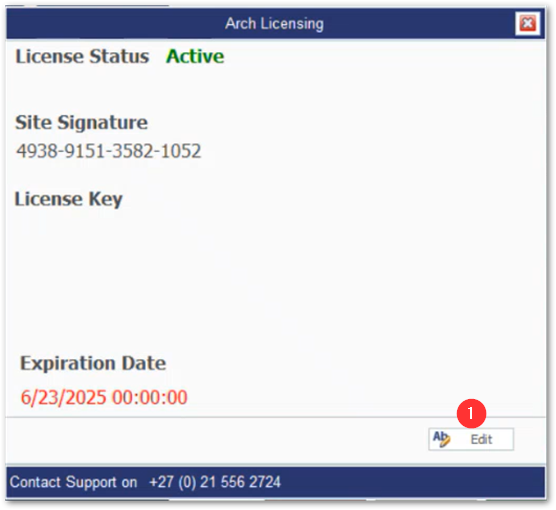
- The Arch Licensing pop-up opens. Here you can see:
-
- Your License Status (Active, in this case).
- Your Site Signature (a unique, 16-digit ID used to renew your license).
- Your License Key (this is blank for active licenses, editable for licenses requiring renewal).
- The Expiration Date of your license.
- A contact number for our Support team. Use this number for license queries/renewals.
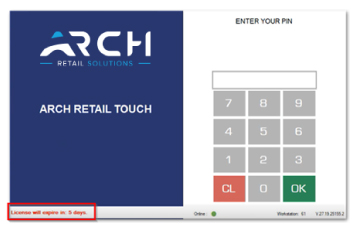
A license approaching expiry
When you run Arch Retail, if you’re within 10 days of your license expiry date, the bottom left of the startup/login screen shows you how many days you have left until your license expires.
Renewing your license
To renew your license:
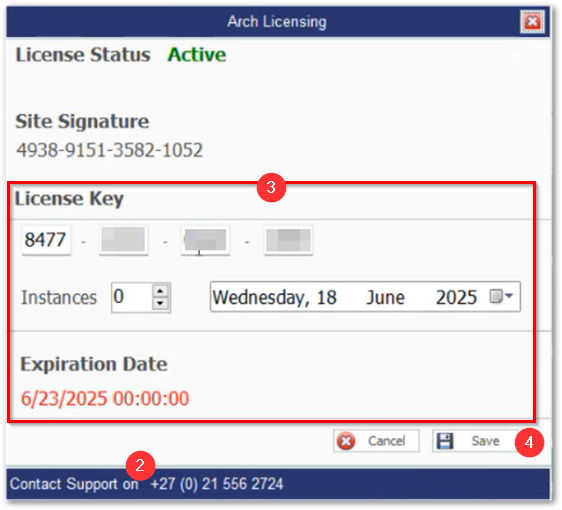
Click the bottom-left license details area to open the Arch Licensing popup, then click Edit (1).
Contact our Support team (2). Enter the information provided telephonically. That is (3):
- A 16-digit License Key.
- The number of Instances.
- The date.
When done, click Save (4).
An expired license
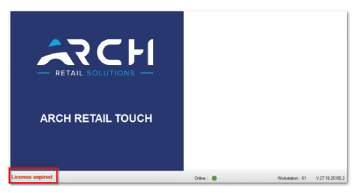
If expired, you can’t log into Arch Retail. The login section is removed from the startup screen (see below).
You must click License expired (in the bottom left corner) and renew your license, as explained above.
What if I’m in Safe Mode?
If your system dropped into Safe Mode before your license expires and remains in Safe Mode when you pass the expiry date, you can continue to trade in Safe Mode (the system won’t kick you out). However, you are restricted to the limitations of Safe Mode:
- You can’t cash up.
- Your stock figures will be inaccurate.
- You can’t access back-office functionality (like GRVs).
- Etc.
I’m offline (not connected to the server) and my license expired. Can I still renew my license?
Yes. You follow the license renewal process described above. This renewal process will work whether you’re online or offline.